
Cleetus IDE and Studio
Cleetus IDE puts a Code - OSS editor, agents and a source-linked Design studio in one workspace. The maintained VS Code extension uses the same Cleetus application and remains independently distributed.
| Product | Availability |
|---|---|
| VS Code extension | Latest public stable release. Install and update. |
| IDE 0.1.0-dev.4 | Local development app built from pinned official Code - OSS source. Unsigned and unnotarized; no signed public native installer is available. |
The images below are actual native captures of a disposable AccountWorkspace project. The Teams image uses dev.4 with role-specific portraits; the remaining images use dev.3. Its four team members are ready and unstarted, tasks are pending, Review shows a real local Git edit, and Design renders a real local component. No providers were started for these captures. They demonstrate the interface and local data, not live account execution, completed customer work or pairing between two physical computers.
Open the source and preview workspace
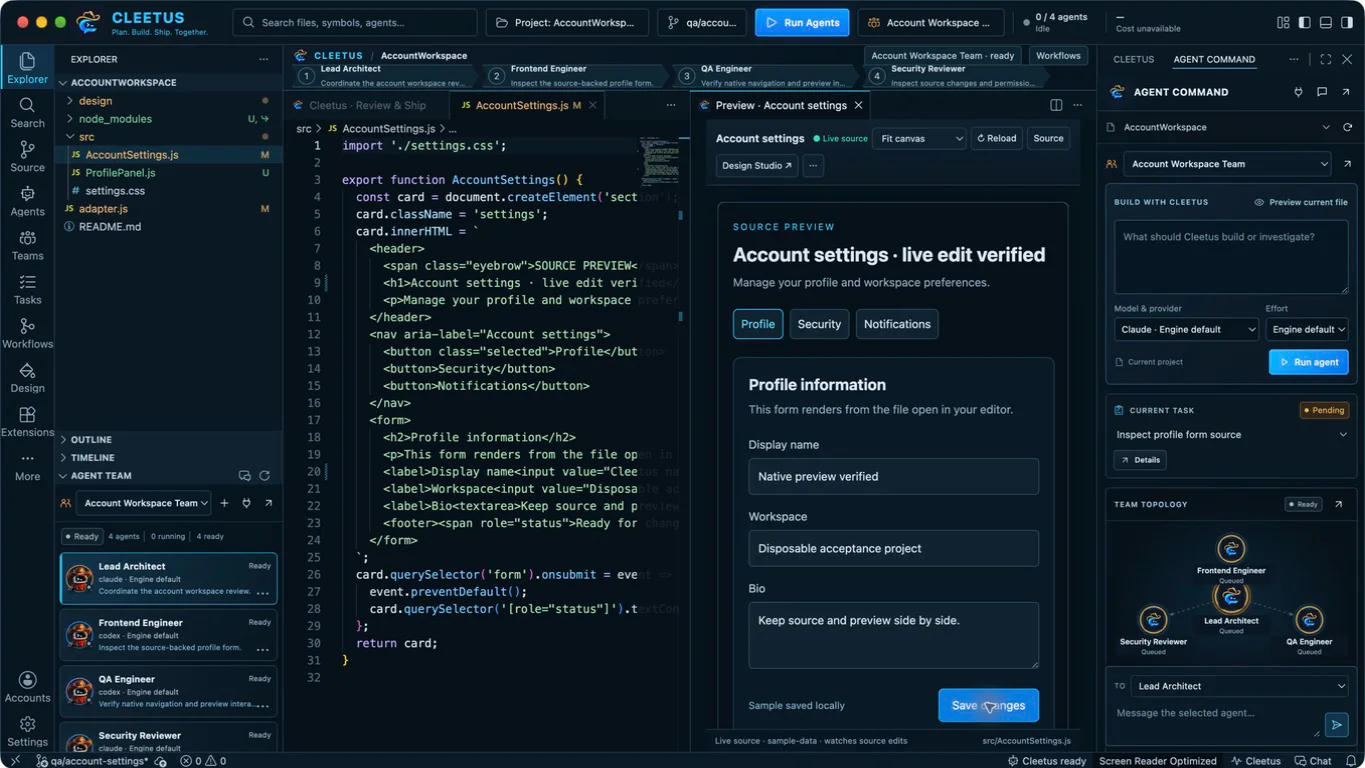
Open a project folder, then run Cleetus: Open Development Workspace. Explorer and the compact Agent Team dock sit on the left; the native source editor and registered live preview share the center; Agent Command stays on the right. The branded command bar and labeled action rail provide access to the editor, Agent Command, Teams, Tasks, Workflows, Review and Design. More retains other editor views, including debugging. The native preview includes the pinned open-source JavaScript/Node debugger: set a source breakpoint, choose a Node launch configuration in Run and Debug, and inspect variables, stacks and expressions. Other languages require their compatible debug extensions.
The workflow strip above the editor uses actual team members, tasks or workflow steps. Select a stage to inspect that recorded item. Existing editor tabs, split resizing, terminal, source control and compatible language extensions remain available.
Run Cleetus: Preview Current File, or choose Preview current file in Agent Command, for a registered page or component. Choose Fit canvas, Desktop, Tablet or Phone; save source changes to rebuild the preview. Source focuses its implementation and Reload refreshes the preview. Buttons and forms run the actual registered source with controlled fixture data. Build failures remain visible.
Use Cleetus: Focus Agent Command for the right dock (Ctrl+Alt+I, or Ctrl+Cmd+I on macOS). Engines opens account setup; Open conversation opens Cleetus chat. Use the native rail or Cleetus: Open Studio for the full Studio screens, and Cleetus: Open Development Workspace to return to source and preview. Studio expands into the editor canvas while retaining the compact team dock; the conversation pane is reserved for wide Agent Command layouts.
The Workspace menu opens existing Tools & security, Work tracking, Memory & Rules and Cleetus settings in the retained shared workspace editor tab. It preserves the selected project and your Studio/Design/source tabs. These are shared workspace screens, not separate native implementations. From Review → Pull requests, Configure GitHub takes you directly to connection setup; return and choose Refresh to load the configured connections.
The IDE keeps its own application identity, settings, extension directories and profiles. It coexists with VS Code without automatically moving settings or credentials. Install compatible extensions from Open VSX or a reviewed VSIX; availability and licensing vary. Cleetus supplies the agent interface. Claude and Codex are the supported engines; the upstream vendor chat/runtime is omitted from this build.
Give Agent Command a goal
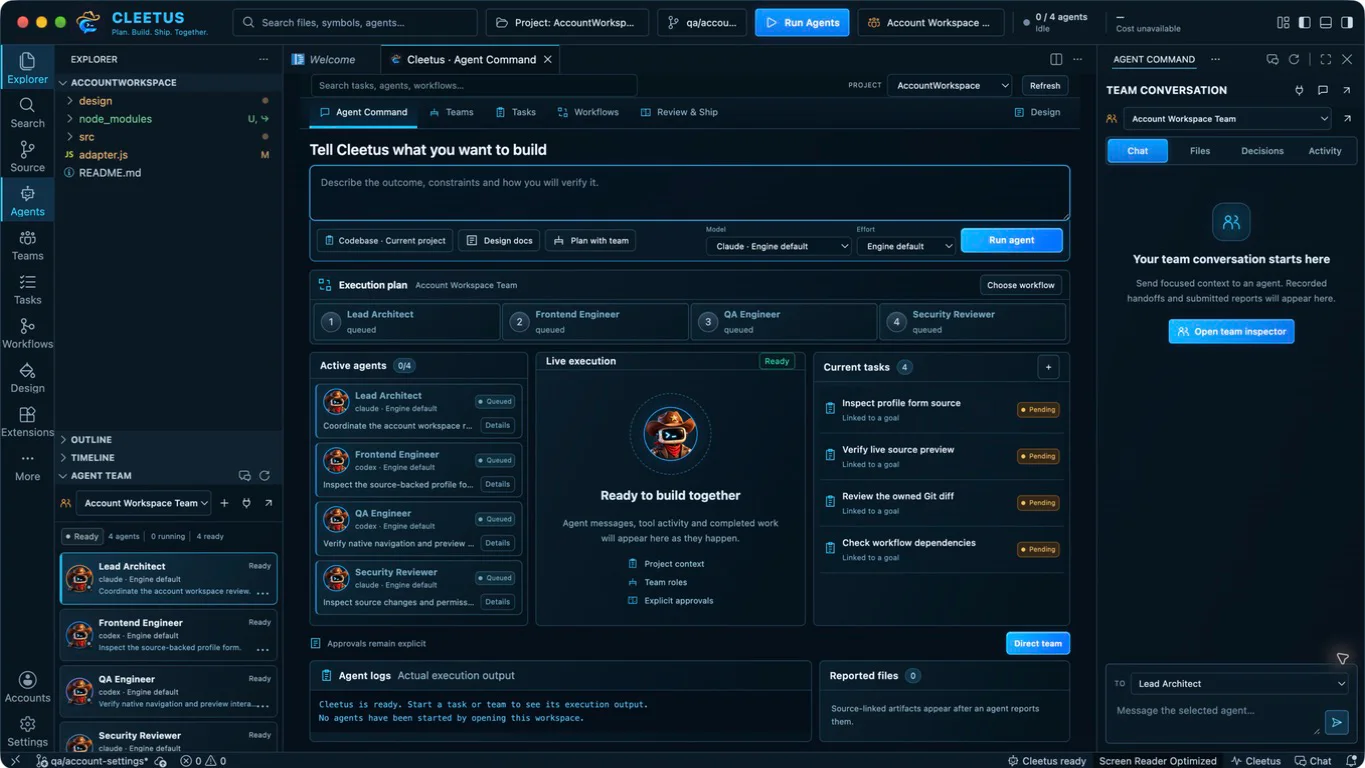
The central Agent Command brings the goal composer, plan, selected team, recorded sessions, tasks, activity and reported files together. Its cards reflect saved local state. Requested models are configuration; provider-reported execution metadata remains unknown until reported. Cost and activity are not inferred from a template or a ready team.
- Connect Claude or Codex through Get started using the engine setup guide.
- Choose a discovered model or Engine default, and an effort supported by that engine.
- Describe the outcome, constraints and acceptance checks. Run agent saves the goal and linked execution task before requesting a run.
- Review the native approval, including project and working directory, then inspect actual output, tool requests and edits.
Saved conversations remains visible alongside team templates and created teams. Choose Continue conversation for the exact saved project session. Sessions created for fenced task work offer Inspect saved output; use the task workflow for a new execution lease. Design agent handoffs open their actual conversation instead of leaving you on the dashboard.
Plan with team opens team setup. Opening a draft, choosing a template or viewing the dashboard starts no agents. A stopped run retains changes already made; review them before continuing.
Give a team a bounded goal
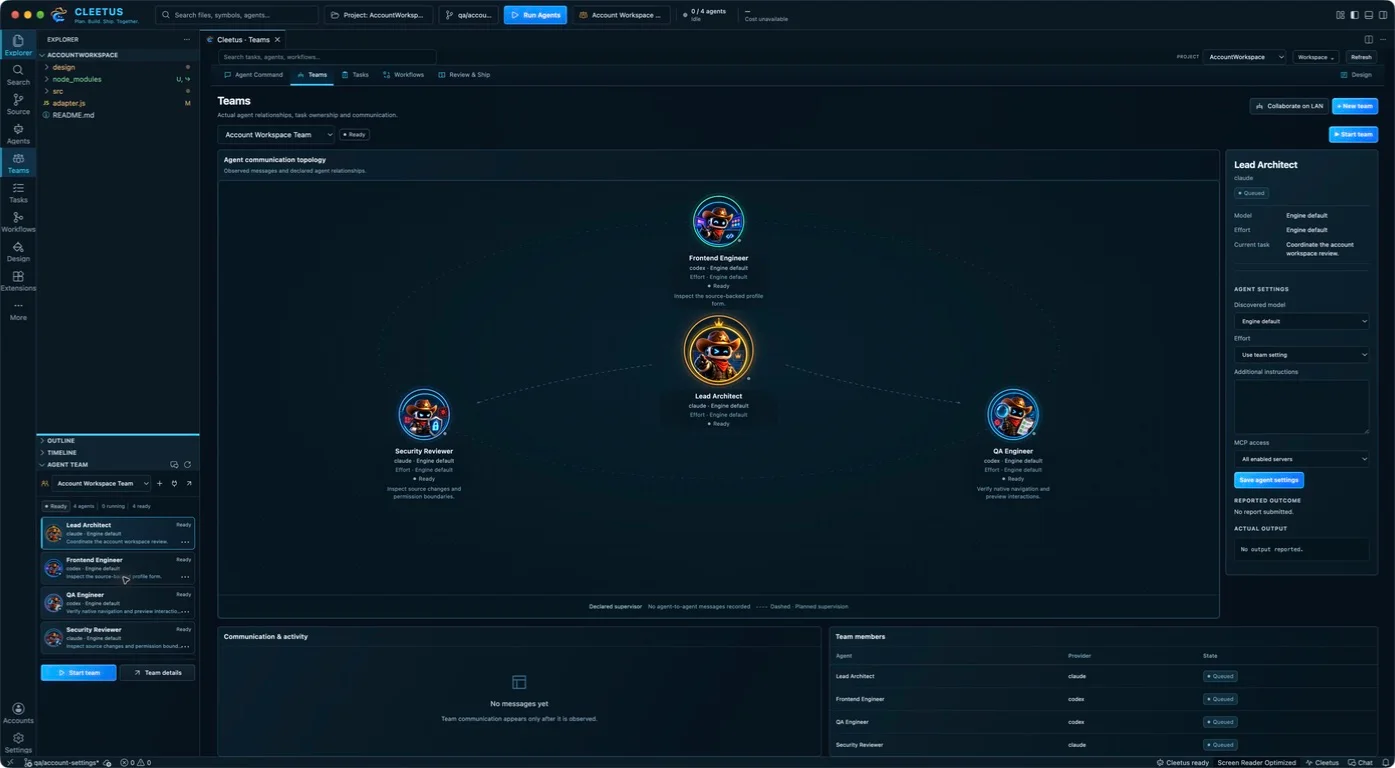
Open Teams → + New team and choose a prebuilt team. Review every role, task, system prompt, engine, model, effort and MCP assignment. A blank member effort inherits the team setting; supervised teams require a Claude supervisor. Ready-member settings can be edited before launch, subject to rejecting stale edits from another window.
Every distinct prebuilt role has its own Cleetus robot portrait, including all four Bug hunt roles and the full Design extraction crew. The catalog has 40 portraits: 33 unique prebuilt-role identities, six additional original domain specialties, and a generalist robot for unrecognized or unspecified roles. The main Cleetus navigation logo stays consistent. Model, engine and execution status remain separate live labels; the artwork does not indicate that a task has started.
The orbital view uses circular role portraits and declared supervision, pipeline and message relationships. State labels distinguish ready members from running or completed work. Motion represents recent observed messages; the diagram itself does not prove communication or execution. An uncreated template is labeled Not created yet.
Creating a team does not start it. Choose Start team and approve the actual configuration when ready. Inspect member output, reports and messages. Pipelines need explicit reports; parallel work needs separate ownership or isolation; supervisors direct their members. Saved history retains output, but historical/interrupted runs do not reattach processes or replay handoffs after restart.
Collaborate on LAN pairs the selected local team with another person's team through an opt-in encrypted connection. Both people approve pairing and each proposal remains subject to local review. See LAN collaboration.
Keep tasks reviewable
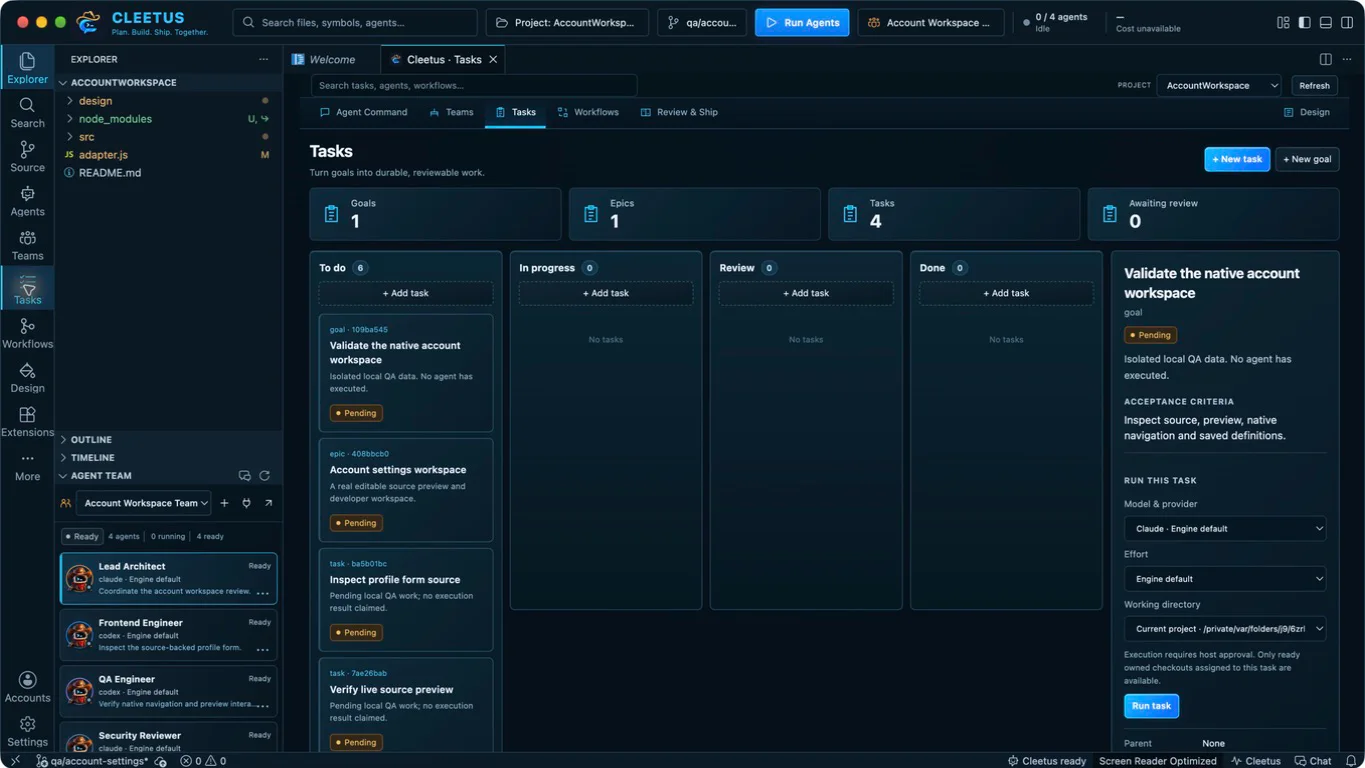
Use + New goal or + New task to record a title, description, acceptance criteria and parent. Select a card to inspect its ownership, execution and report. The board separates pending, running, review and completed work.
For a pending task, choose the engine/model, effort and working directory, then Run task and inspect the approval. Available checkouts include the current project and ready Cleetus-owned worktrees associated with that exact task. Follow the execution receipt, use Stop execution when needed, and inspect saved output. Creating a worktree alone does not redirect a run.
Dependencies must be completed and approved before dependent work can be claimed. Ownership has an expiry and fencing generation, so replaced or expired claims cannot report new work. A report or ended turn moves work to review; inspect actual files, diffs and checks before Approve result or Request changes. Completion is your decision, not an automatic claim that checks passed.
Define a workflow, then inspect its runs
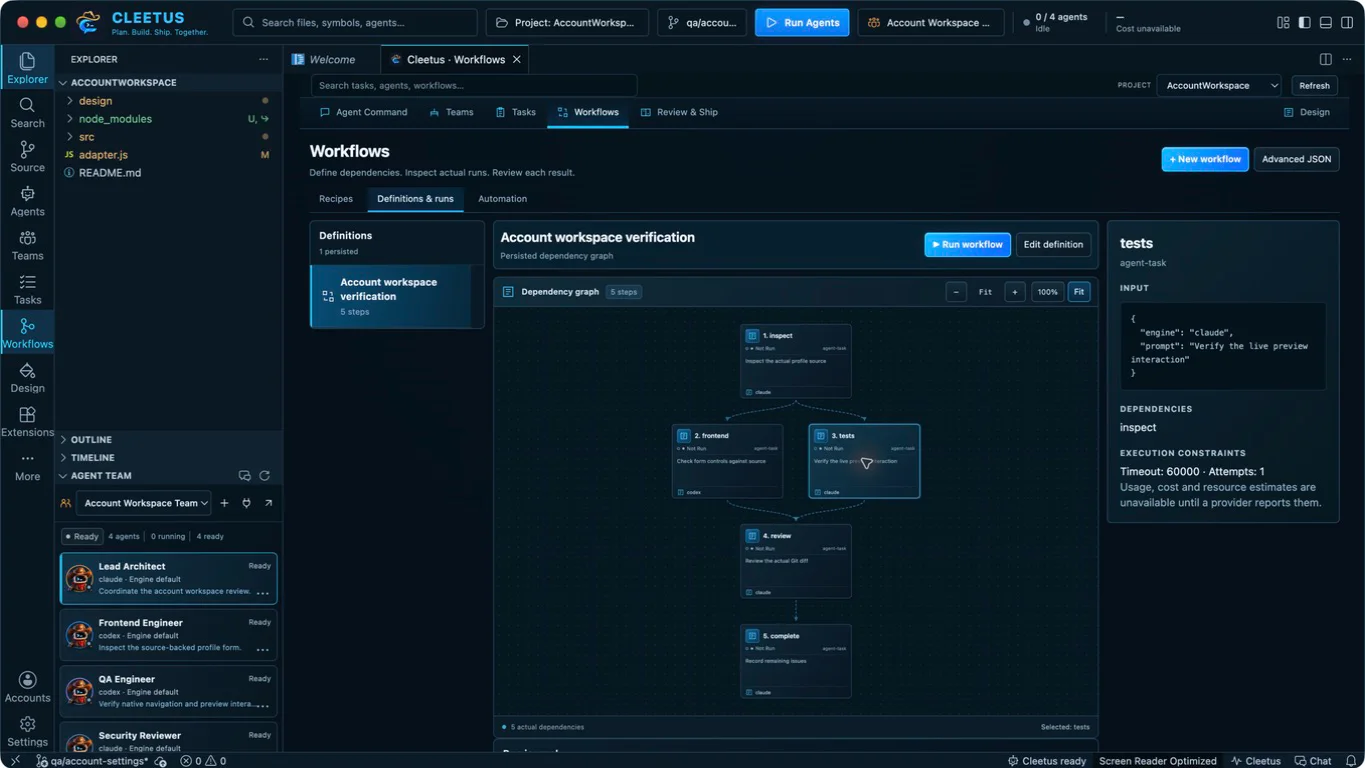
Open Workflows and choose a recipe for feature work, investigation, review, documentation, tests or deployment preparation. Enter a bounded goal and model/effort, then create the saved DAG. Advanced JSON supports explicit steps with unique IDs, supported actions, input and dependsOn lists. Use agent-task for an engine request or design-extract for Design extraction.
The canvas displays the real definition and actual selected-run states. Drag to pan, use +/− to zoom, 100% for actual size or Fit to see the graph. Independent steps can run in parallel; dependencies wait for predecessors. Choose Run workflow and approve its displayed steps, then inspect the run journal separately from the definition.
Editing a definition preserves earlier runs. Failed predecessors block dependent steps. Current agent and Design actions do not automatically retry side effects. Cancellation requests a stop; work that has not settled remains uncertain. Interrupted runs are not replayed on restart.
Optional automation
Workflows → Automation → + Add automation supports intervals from 60 seconds to 7 days, or named events project.changed, task.reviewed and manual. New automation starts disabled. Enabling or changing it requires human approval of the exact definition revision and trigger; editing the workflow invalidates that authorization.
Named events are explicit host events, not implicit file watchers. Emit an event needs approval. Reusing an event ID returns its existing receipts; New event ID requests a distinct delivery. Inspect dispatch history and the linked run. Missed intervals and overlaps are skipped; failed or uncertain dispatch stops future automation for review. Disable or remove automation to stop future dispatches.
Review the actual changes
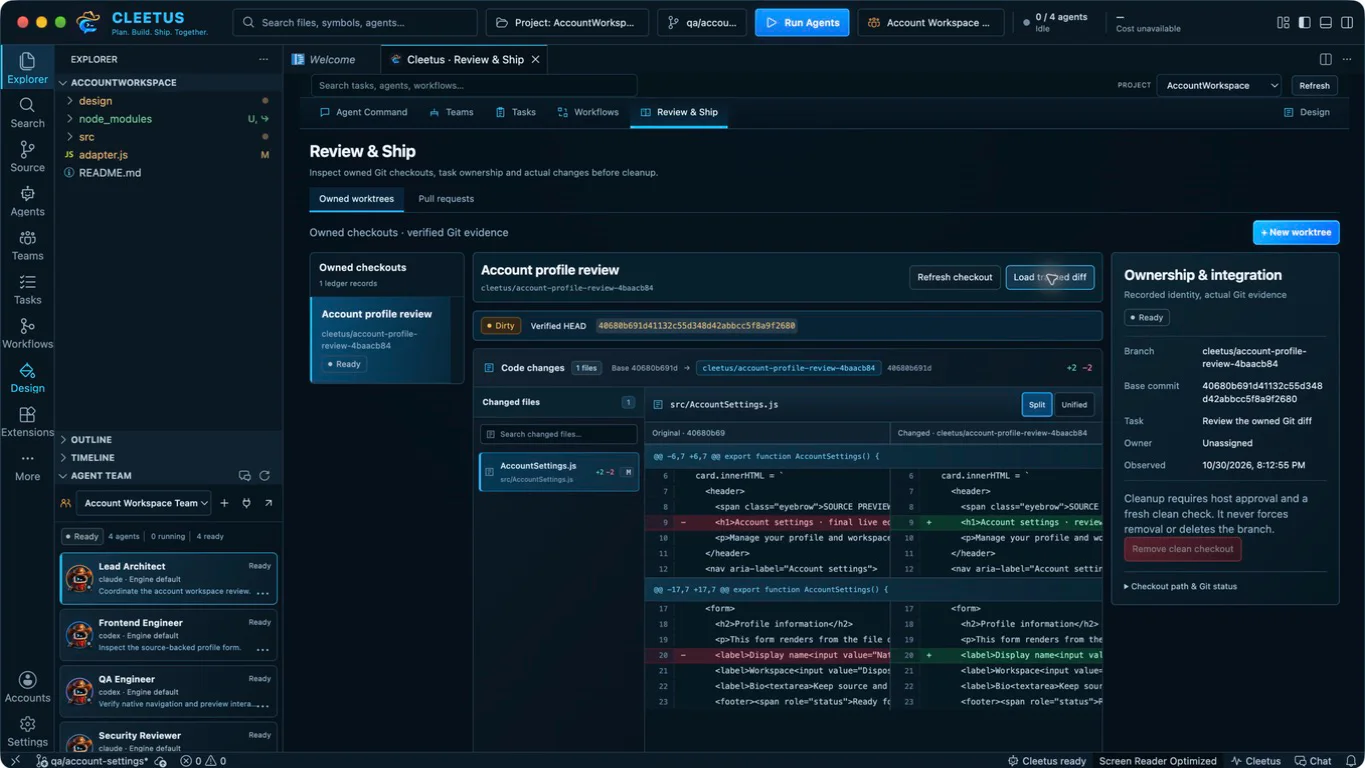
Review & Ship → Owned worktrees → + New worktree creates a checkout and branch from committed HEAD after approval. Associate it with an existing task. Uncommitted primary-checkout changes stay there. Worktrees isolate checkout files, not operating-system permissions; normal engine approvals still apply.
Choose an owned checkout, Refresh checkout, then Load tracked diff. Inspect its recorded base, branch, task association and changed-file selector. Switch Split/Unified to compare source-backed hunks. Truncated output is marked. Untracked and ignored files are listed by name; they are outside the tracked diff.
Task ownership remains on the primary project's board even when execution uses its approved checkout. Another task's worktree, changed Git identity or a stale lease does not grant access, and history does not restore checkout authority automatically.
The Pull requests view uses a configured GitHub tracker to show checks, reviews and merge evidence for the current head. Missing, skipped, stale and unavailable results remain distinct from a pass. Follow the provider link for normal review and merge decisions.
Cleanup needs explicit approval and removes only a verified clean Cleetus-owned checkout. Tracked, untracked and ignored files block it; the branch remains. Review does not automatically merge or cherry-pick changes.
Refine a source-linked component in Design
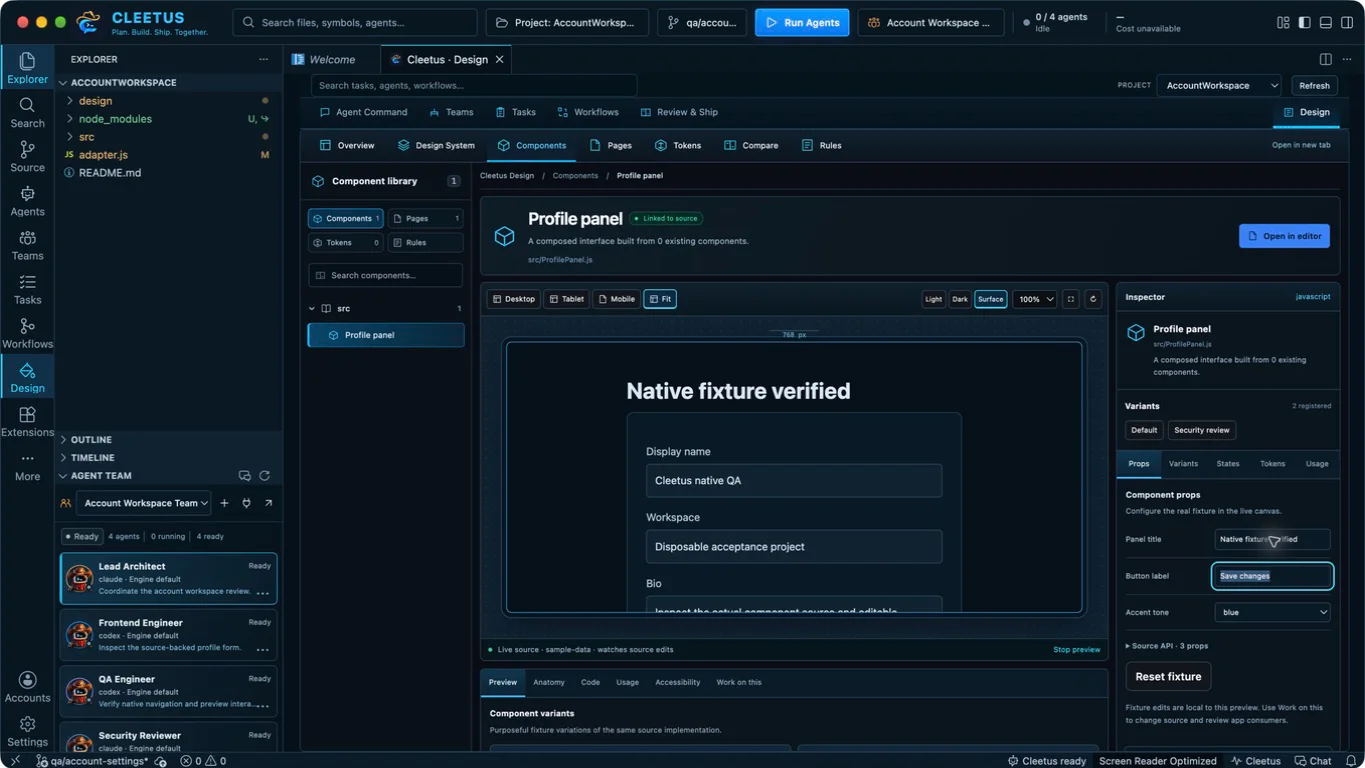
Open Design for the component library, interactive source canvas, linked code/fixture panels and component properties. Select a registered component, inspect its implementation and fixtures, and change its exposed controls to exercise the real preview. The inspector uses registered component metadata and supported props; discovery alone does not establish a successful render.
Extract tokens, assets, components, pages and rules from existing code, then prepare focused agent work with source-linked context. Design Studio ↗ in the editor preview opens the same Design viewer. Preparing a refinement draft does not send it or start a team. Review consumers and relevant checks before adopting an edit.
Registered Apple items use Open native preview and Build log; the real iOS/watchOS interface runs in Apple Device Hub/Simulator with your Xcode toolchain and runtime. Android discovery has no native preview renderer yet.
Design workflow · Web and Apple adapters · Product libraries
Accounts, approvals and updates
Credentials stay in the host credential store or supported provider runtime configuration; profile copies do not transfer secure login. Engine accounts and runtimes are separate from installing Cleetus. Existing permissions and host approvals apply across teams, tasks, workflows and collaboration.
Extension updates install VSIX files independently from native IDE updates. The native updater verifies checksum, publisher, bundle identity and notarization before staging and rechecking a signed installer for your explicit Open installer choice. Unsigned development builds can view public release notes but cannot use that verified installer path. A successful local build is not a signed public release. See installation, local service and licenses.